
Help · Your data
Move your photos from Google Photos
Download your library with Google Takeout and add it to Gantara.
Gantara cannot connect to your Google account. Instead, you ask Google for a copy of your photos with Google Takeout, and add them to Gantara. Do this on a computer: it is much easier than on a phone.
Keep your photos at Google until you have checked that everything arrived in Gantara.
The easy way
When the Move to Gantara page of your dashboard shows a Google Photos card, Gantara does the hard part for you. You don’t need to open or unzip anything. Follow the four steps on the card:
- Ask Google for a copy of your photos. Press Open Google’s page: only Google Photos is ticked. Press Next step, choose 2 GB as the file size, then press Create export.
- Wait for Google’s email, then download the files. This usually takes a day or two. Download every file in the email within a week.
- Put the files in your Gantara Drive. Press Open my Gantara folder and drag the files in, as they are. The first time, press Allow Gantara first.
- Tell us when all the files are in. Back on the card, press I’ve put all my files in.
That’s all. We add your photos and videos to your Photos folder, with the date each was taken, and email you when they are in. You can close the page in the meantime.
Good to know:
- Forgot to press the button? We email you after a few days without a new file, and finish by ourselves after a week.
- Not enough space? The card tells you how much to add. Add storage on Plan & storage, then press Continue on the card.
- Lots of photos (more than 10 GB)? The desktop app copies big files more reliably than your browser. When it asks what to sync, choose only the Imports folder.
- More options on the card: we remove the downloaded files once your photos are in, so they don’t take up space. You can switch this off. You can also have a folder made for each album.
No Google Photos card on the page? Then follow the steps below.
Step 1: Make a Photos folder in Gantara
The Photos app in Gantara shows the pictures in your Photos folder. If you don’t have one yet, make it first:
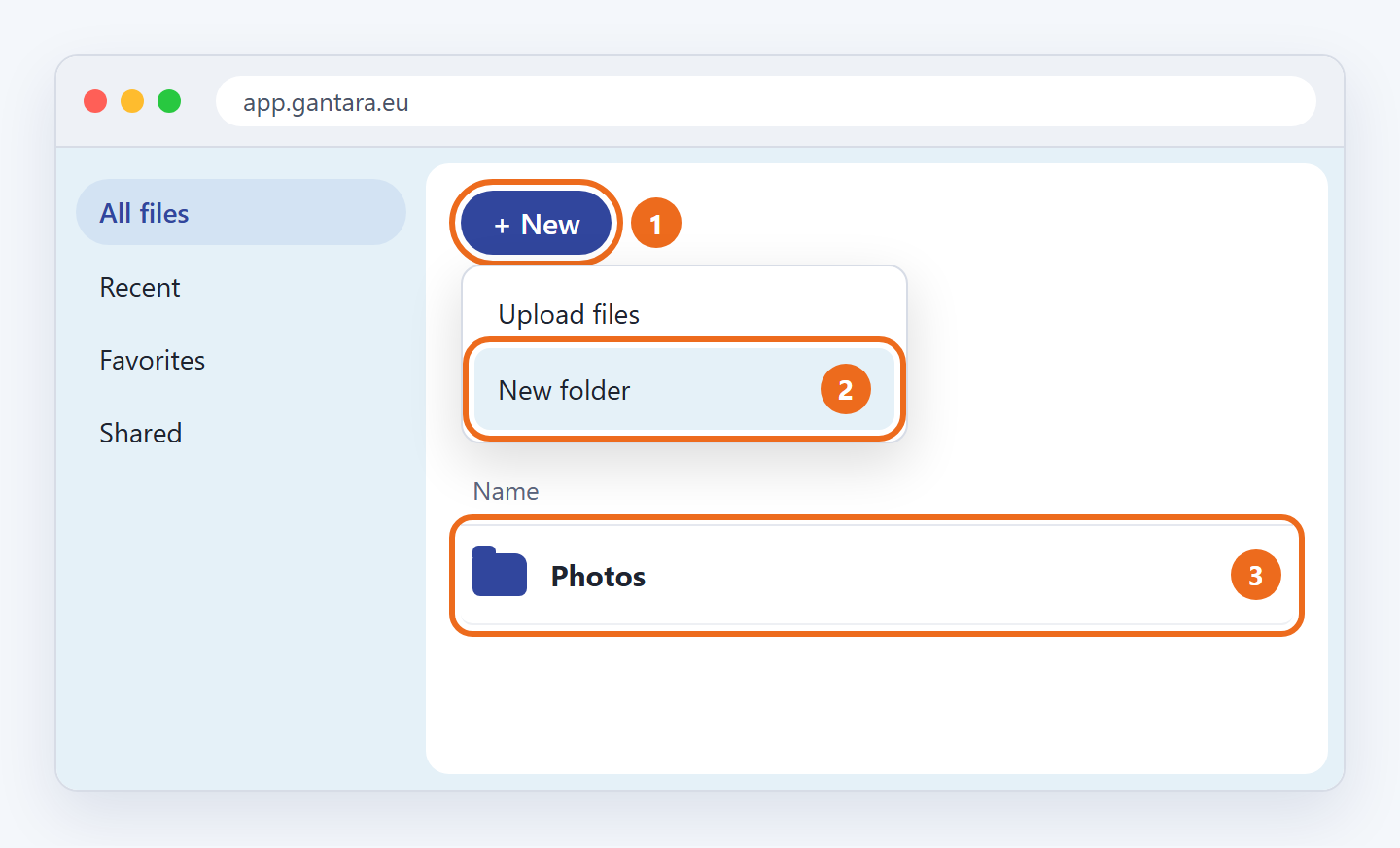
- Open https://app.gantara.eu and go to Files.
- Click New.
- Choose New folder, name it Photos and press Enter.
Check that your plan has room too. At one.google.com/storage you see how much space your photos take at Google. You can add 1 TB at a time on Plan & storage.
Step 2: Ask Google for a copy
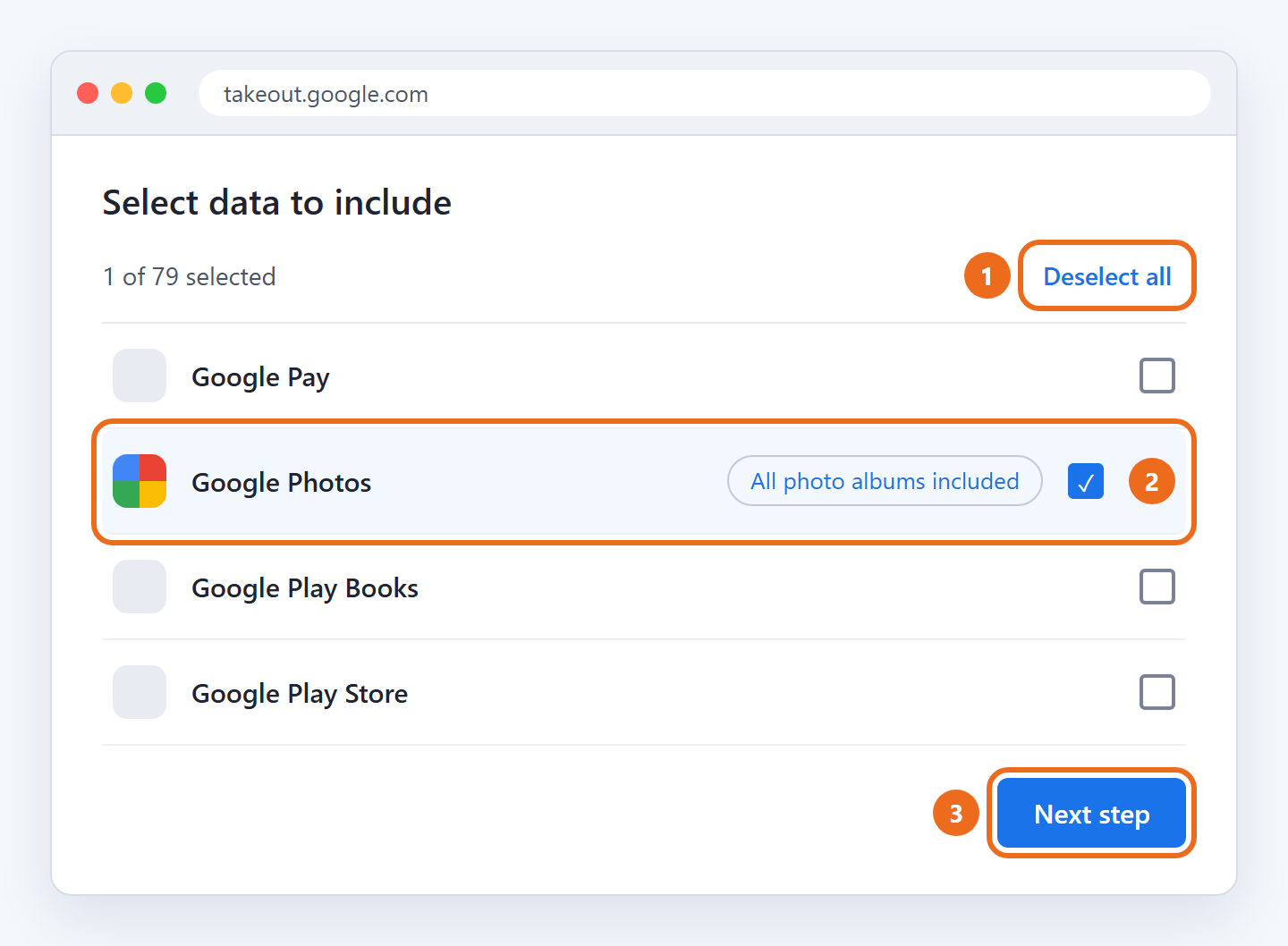
Go to takeout.google.com and sign in with your Google account. Then:
- Click Deselect all.
- Scroll down to Google Photos and tick it.
- Scroll to the bottom and click Next step.
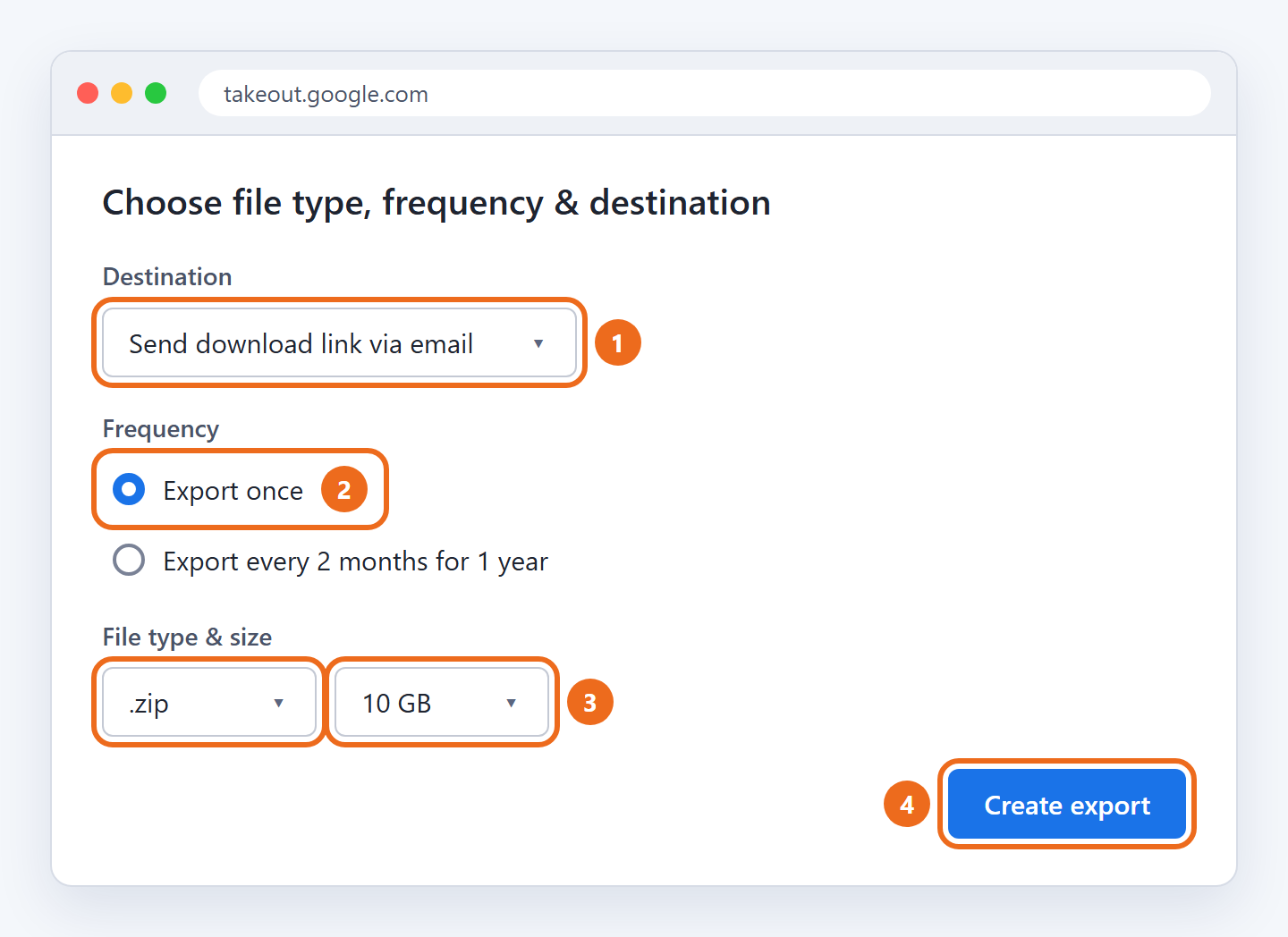
On the next screen:
- Under Destination, keep Send download link via email.
- Under Frequency, keep Export once.
- Under File type & size, keep .zip and choose 10 GB. A big library comes in several parts of this size.
- Click Create export.
Google emails you when your copy is ready. This can take a few minutes or a few days.
Step 3: Download and unzip
- Open the email from Google and click Download your files.
- Download every part. The links work for about 7 days, so do it soon.
- Unzip each part. On Windows, right-click it and choose Extract All; on a Mac, double-click it. Each part gives you a Takeout folder with a Google Photos folder inside.
Step 4: Add your photos to Gantara
Inside Google Photos you find folders like Photos from 2019 and Photos from 2020. Put the contents of the Google Photos folder of every part in your Photos folder in Gantara:
- With the desktop app (best for many photos): move the folders into the Photos folder inside your Gantara folder. The app uploads them in the background, and carries on after an interruption. Don’t have the app yet? See Set up the desktop app.
- In your browser (fine for a few hundred photos): open Files at app.gantara.eu, open your Photos folder and drag the folders into the window. Keep the page open until the upload is done.
Short on space? The Photos from folders hold all your photos. The other folders are your albums and contain copies of the same photos, so you can leave them out.
Step 5: Check that everything arrived
Open Photos in the Gantara web app. Your photos and videos appear by date under All media. Scroll back to a few old dates and open some photos and videos.
When you are sure everything is there, you can lower or cancel your Google One storage plan. Be careful with deleting: deleting photos in Google Photos also deletes them from the phones that back up to it.
Good to know
.jsonfiles come with your photos. They hold extra details from Google. You can upload them or leave them out; the Photos app does not show them.- Dates: photos taken with a phone or camera keep the date they were taken. Screenshots and pictures saved from chat apps may show the date you uploaded them instead.
- Edited photos come twice: the original and a copy with
-editedin the name. - Albums become folders; in All media your photos are sorted by date.
- Videos show a plain icon instead of a preview picture in the overview.
- New photos on your phone can go straight to Gantara from now on with the Nextcloud Files app: see Phone apps.
Need a hand with a big library? Ask us.